

Key Takeaways
- A branded VPN app should ship kill switch, split tunneling, and auto connect with tested defaults.
- The three features share one routing layer, so changing one changes how the others behave.
- On iOS, strict full-tunnel enforcement ignores excluded routes, so it conflicts with split tunneling.
- On Android, the system block setting cuts network access for apps excluded from the tunnel.
- Keep the kill switch and untrusted Wi-Fi auto connect in every tier; gate convenience features.
- Test five feature conflicts before release, and explain each block with plain in-app copy.
Quick Answer: A branded VPN app should expose split tunneling, a kill switch, and auto connect with tested defaults. The three features conflict with each other and with platform rules. Product managers should set defaults per platform before designing the settings screen.
A branded VPN app wins or loses trust in the moments users never plan for. The tunnel drops on a train. A banking app refuses the VPN address. A hotel network blocks the login page. Each moment either becomes a silent leak or a support ticket with your logo on it.
The risk is measurable. The TunnelCrack research tested more than 66 VPNs across five platforms. Every iOS VPN app it tested leaked traffic through the local network exception. Meanwhile, demand keeps rising. Security.org’s 2026 VPN report found 42% of Americans now use a VPN, up from 32% in 2025.
This guide is for product managers who own a branded VPN app. It explains how the three features interact, which platform rules limit them, and which defaults to ship.
Why Feature Exposure Is a Product Decision
Every toggle in a branded VPN app moves risk somewhere. Hide a control, and users cannot fix their own conflicts. Expose it without a safe default, and users break their own protection. Therefore, exposure is a decision about who carries the risk.
Support load shows the cost first. Consider an illustrative app with 200,000 monthly active users. If 0.5% contact support about lost internet after a kill switch block, that is 1,000 tickets a month. At 10 minutes each, the team spends about 167 agent hours on one setting. These are round illustrative figures, not benchmarks.
Store reviews carry the second cost. A user who loses internet rarely blames their network settings. Instead, they blame the app and say so in a one-star review. For that reason, defaults and in-app explanations matter as much as the features themselves.
How Kill Switch, Split Tunneling and Auto Connect Interact
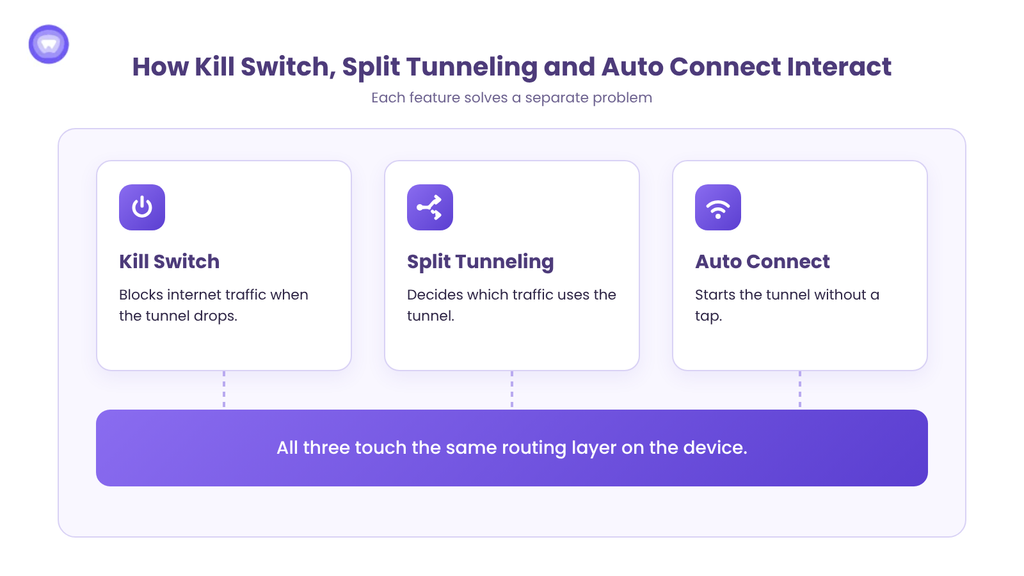
Each feature solves a separate problem. However, all three touch the same routing layer on the device. As a result, a change to one feature changes how the other two behave.
Kill Switch: What It Blocks and What It Misses
A kill switch blocks internet traffic when the tunnel drops. It prevents accidental exposure during reconnects, network changes, and app crashes. Users expect it, so it belongs in every branded VPN app.
Still, a kill switch only reacts to a dropped tunnel. In 2024, researchers showed a malicious network could steer traffic outside a connected tunnel. Because the tunnel stays up, a disconnect-based kill switch never fires. Android was not affected, since it ignores the network setting the attack abuses.
The kill switch also blocks things users want. Local printers, casting devices, and some messaging traffic can stop working. Consequently, the app should explain each block in plain words when it happens.
Split Tunneling: Include Lists, Exclude Lists, and Local Access
Split tunneling decides which traffic uses the tunnel. It comes in two modes. An include list sends only chosen apps through the tunnel. An exclude list sends everything except chosen apps.
Most consumer users want the exclude mode. For example, they exclude a banking app that rejects VPN addresses, or a game that needs low latency. Business users often prefer the include mode for one sensitive app.
Local network access is a third, quieter form of split tunneling. It lets users reach printers and smart TVs while connected. However, the TunnelCrack research shows this same exception is what attackers abuse on hostile networks. So the safe default is local access off on public networks.
Auto Connect: Triggers, Trusted Networks, and Reconnect Loops
Auto connect starts the tunnel without a tap. Common triggers include device startup, any untrusted Wi-Fi network, or any network at all. Trusted network rules then pause the tunnel at home or at the office.
Auto connect is not a leak shield on its own. Apple’s own engineers state that on-demand connection rules were not designed to prevent leaks. Traffic can still pass in the gap before the tunnel starts. Therefore, auto connect works best when paired with a kill switch.
Reconnect behavior also depends on the tunneling protocol. Some protocols recover faster when phones switch between Wi-Fi and cellular, so protocol choice shapes auto connect quality. Also, auto connect must stop when a subscription ends. Revocation should cover every active session, or canceled users keep a working tunnel.
The Platform Rules That Decide What You Can Expose
Your branded VPN app does not control the operating system. Each platform sets hard limits on these three features. Next, here is what each platform allows today.
iOS and iPadOS
Apple offers a full-tunnel mode that acts as a system-level kill switch. However, an Apple systems engineer confirmed in June 2026 that this mode ignores excluded routes. Only push notifications, local networks, and cellular services can bypass it. In practice, a strict kill switch and route-based split tunneling cannot run together on iOS.
App-based split tunneling is also not available to consumer VPN apps on iOS. Meanwhile, Apple’s always-on VPN mode is not offered to third-party apps. Auto connect relies on on-demand rules instead, which can match network names and network types.
The strict mode carries one more cost. Developers on Apple’s forums report that app updates can fail while full-tunnel enforcement is on. As a result, test the update path before you make strict mode a default.
Android
Android gives VPN apps more routing control. Apps can build include lists or exclude lists, but not both at once. Android also offers always-on VPN at the system level, plus a “block connections without VPN” setting.
That system setting is the strongest kill switch on Android. However, it changes split tunneling. Google’s own guidance confirms that excluded apps lose network access when the block setting is on. So a user who excludes a banking app and enables the system block will find that app offline.
Windows and macOS
Desktop platforms allow firewall-level controls. A firewall-based kill switch can block traffic per app rather than per tunnel. That design lets split tunneling and the kill switch run together, when the SDK supports it.
macOS follows many of the same network rules as iOS, while Windows offers more freedom. For that reason, desktop builds often ship features that mobile builds cannot match. Plan for that gap in your feature copy.
The table below summarizes what each platform allows for the three features.
| Feature | iOS and iPadOS | Android | Windows | macOS |
|---|---|---|---|---|
| Kill switch | Full-tunnel enforcement; few exceptions | System “block connections without VPN” or in-app blocking | Firewall-based, per app possible | Full-tunnel enforcement or firewall rules |
| App-based split tunneling | Not available to consumer apps | Include list or exclude list, not both | Available through SDK | Limited; depends on SDK design |
| Kill switch plus split tunneling | Conflict under strict enforcement | Excluded apps go offline under system block | Can coexist with firewall design | Depends on enforcement mode |
| Auto connect | On-demand rules by network name or type | Always-on VPN at boot | Startup and network triggers | On-demand rules |
| Trusted networks | Disconnect rules by Wi-Fi name | In-app rules | In-app rules | Disconnect rules by Wi-Fi name |
A Default Settings Matrix for Your Branded VPN App
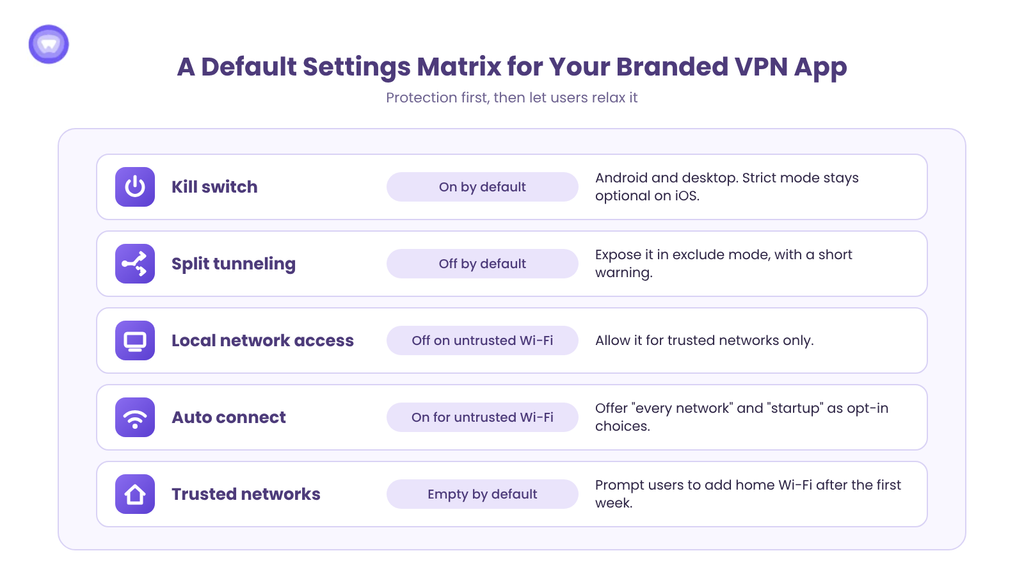
Defaults decide what most users experience, since few users open settings. So the matrix below favors protection first and lets users relax it.
- Kill switch: On by default on Android and desktop. On iOS, use the standard mode by default and offer strict mode as an advanced option.
- Split tunneling: Off by default. Expose it in exclude mode, with a short warning that excluded apps skip protection.
- Local network access: Off on untrusted Wi-Fi. Allow users to turn it on for trusted networks only.
- Auto connect: On for untrusted Wi-Fi by default. Offer “every network” and “startup” as opt-in choices.
- Trusted networks: Empty by default. Prompt users to add home Wi-Fi after the first week.
This matrix also reduces support load. Each conflict now has a predictable outcome, and the app can explain it.
Which Features to Gate Behind a Paid Tier
Many teams package a branded VPN app as a free tier plus a premium tier. The three features do not belong in the same tier, because they carry different risks.
- Kill switch: Keep it in every tier. A paywalled kill switch means free users leak traffic by design, and that harms the brand.
- Auto connect on untrusted Wi-Fi: Keep it in every tier as well. It protects users who forget to tap connect.
- Split tunneling: A fair premium feature. It adds convenience rather than baseline protection.
- Trusted networks and startup triggers: Also fair premium features, since they tune comfort rather than safety.
This split keeps the protective floor equal for all users. Meanwhile, convenience features still give paid users a clear reason to upgrade.
Settings Copy That Prevents Support Tickets
Most conflicts become tickets because the app stays silent. Clear copy at the moment of conflict fixes much of that. Write each message in plain words and name the next action.
- Kill switch block: “Your connection dropped, so we paused internet access to keep you private. Reconnecting now.”
- Excluded app offline on Android: “This app is excluded, and your phone blocks traffic outside the VPN. Remove the exclusion or change the phone setting.”
- Strict mode on iOS: “Strict protection sends all traffic through the VPN. Your app exclusions will not apply while it is on.”
- Hotel login page: “This network needs a sign-in page first. Tap here to open it, then we will connect you.”
Each message should also link to a short help article. As a result, the user solves the conflict without waiting for an agent.
Five Conflicts to Test Before Release
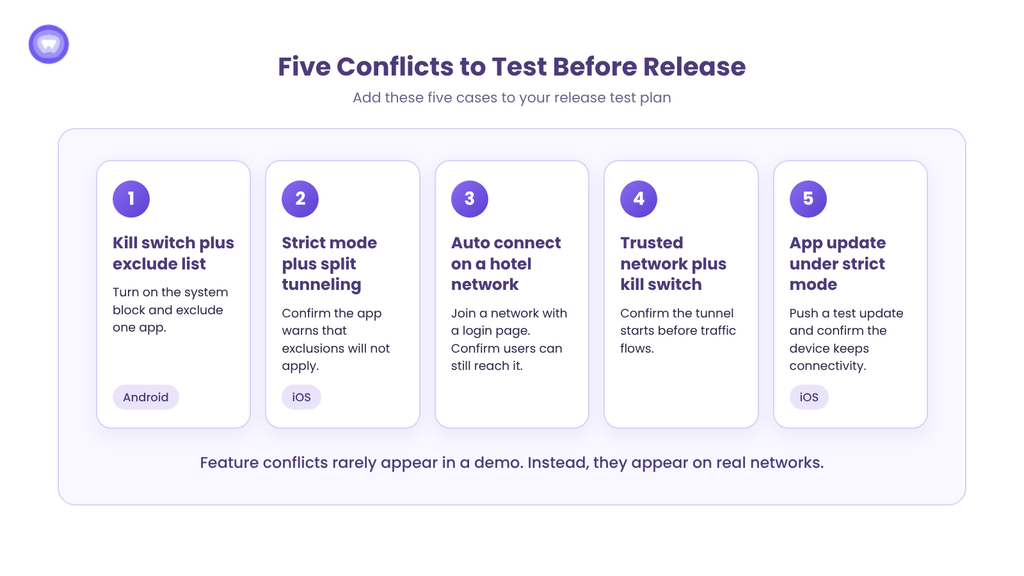
Feature conflicts rarely appear in a demo. Instead, they appear on real networks a week after launch. Add these five cases to your release test plan.
- Kill switch plus exclude list on Android: Turn on the system block and exclude one app. Confirm it shows a clear offline message.
- Strict mode plus split tunneling on iOS: Enable both, then confirm the app warns that exclusions will not apply.
- Auto connect on a hotel network: Join a network with a login page. Confirm users can still reach it.
- Trusted network plus kill switch: Leave a trusted network and confirm the tunnel starts before traffic flows.
- App update under strict mode on iOS: Push a test update and confirm the device keeps connectivity.
For leak checks, reuse a proven kill switch test that forces the tunnel down at the system level. Also run it with the newer internet address format turned on, since many demo devices switch it off.
What to Ask Your SDK Provider Before You Design the Screens
Your settings screen can only expose what the SDK supports. So collect written answers before design work starts.
- Split tunneling scope: The supported modes on each platform, and whether include and exclude lists can combine.
- Kill switch design: Whether the kill switch works per tunnel or per app on each platform.
- Auto connect controls: The triggers and trusted network rules the SDK exposes to your interface.
- Failover behavior: What the SDK does when a server or protocol fails mid-session.
- Session revocation: How fast the backend ends every session when a subscription lapses.
Add these questions to your wider provider checklist before contract review. Vague answers here become support tickets after launch.
Proof: What Built-In Protection Did for One Productivity App
One productivity app learned this lesson before adding a VPN. More than 30% of users who uninstalled cited lack of security as a factor. The team then embedded a white-label VPN SDK inside its existing iOS and Android apps.
Custom APIs automated server selection and connection logic, so users did not manage the tunnel by hand. Within 90 days, average session time grew 12%. Read the productivity app case for the full rollout. These results are vendor-reported and cover the VPN integration as a whole, not each feature on its own.
How PureWL Supports These Features in a Branded VPN App
PureWL ships an Internet Kill Switch and split tunneling inside its white label VPN, across four tunneling protocols. On Android, the SDK supports both include and exclude lists from one shared app list. On iOS, custom on-demand rules can connect, disconnect, or ignore by network, including trusted Wi-Fi.
Each platform SDK also offers local network access, protocol failover, automatic retry, and pause and resume. Product managers can review each option in the VPN SDKs documentation before design starts.
Conclusion
A branded VPN app earns trust through defaults, not feature counts. Kill switch, split tunneling, and auto connect each protect users. However, together they create conflicts that differ by platform.
Map each platform’s limits first. Then set protective defaults, expose controls with clear warnings, and test the five conflicts before release. Decide before your next release, not after a one-star review forces the question.
Request API sandbox access for a 20-minute integration walkthrough.